
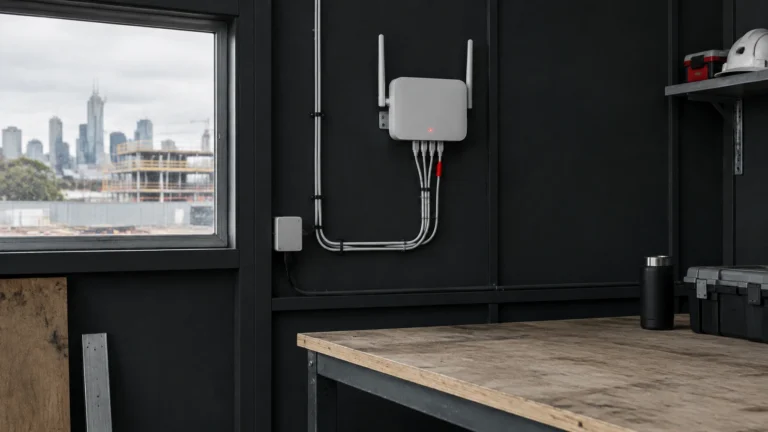
A reliable site shed wifi setup starts with a router and, where needed, a separate Wi-Fi access point inside the shed. Use a fixed connection when it’s available, with a 4G or 5G mobile connection ready to take over if the main service drops. Set up separate Wi-Fi for your team and subcontractors.
If you need help planning a setup that suits your site, construction IT support across Melbourne Manny Rahat can help you choose equipment and get it working before the shed becomes the site office.
Why the NBN rarely arrives when the shed does.
A site can be ready for work before its internet connection is ready. The shed may be delivered and powered, but the NBN service still needs to be checked, ordered and connected. At a new or temporary site, the right connection may not be available straight away.
The timing depends on the address and the work needed. A site that can use an existing service may be straightforward. A new development, missing connection point or required cabling work can add steps. Check availability early, but don’t plan the first weeks of work around an unconfirmed connection date.
A mobile connection can cover the gap. A 4G or 5G router with a suitable data plan can get the office online while the fixed service is arranged. When the NBN is connected, it can become the main connection, with mobile data kept as a backup if the router supports failover.
4G failover, in plain English.
Failover means having a second internet connection ready to take over when the first one stops working. A compatible router checks the main connection. If it loses service, the router switches to its mobile connection. When the main service is working again, it can switch back.
The switch only happens automatically if the router is set up to do it. Ask how it will behave before relying on it. Some services may pause or reconnect during the changeover, so test it with the tools the team actually uses, such as cloud files, video calls or online project software.
There isn’t one mobile data plan that suits every site. Check coverage where the shed will sit, how much data the team is likely to use, and what happens if the allowance runs out. Video calls, large file uploads and several people working online can use more data than basic email and browsing. Compare available plans from carriers such as Telstra, Optus and Vodafone at the site itself, not just by checking a coverage map.
A phone hotspot can help in a pinch, but it isn’t a dependable site office connection. It relies on one person’s phone and battery, can be awkward to share, and doesn’t provide the same controls as a dedicated router. It’s useful as a short-term backup while someone troubleshoots. It’s not a good plan for keeping the whole site connected every day.
Setting up wifi the shed can survive.
Site sheds take more punishment than a home office. Dust, heat, condensation, vibration and power interruptions can all affect equipment. Put the router somewhere dry, secure and ventilated, away from direct sun, dust and places where it can be knocked or covered by gear.
Steel walls can weaken mobile and Wi-Fi signals. Test the mobile signal inside the shed, then place the router where reception is strongest. If the signal is poor, a compatible external antenna may help. Position and install it safely, with cabling protected from weather and damage.
Keep network equipment off the floor and mount it securely. Use suitable surge protection, and consider a small UPS, a battery backup that keeps equipment running briefly through a power interruption. If a power point or site wiring needs changing, have the work done by a qualified electrician.
Lock the router and network equipment in a secure cupboard or cabinet, but leave enough airflow to prevent overheating. Keep the key or access code with the people responsible for the site office. Change any default passwords before the team starts using the network.

Staff wifi and subcontractor wifi should not be the same network.
Your staff may need access to work files, printers, project systems and other office resources. Subcontractors may only need internet access on their own devices. Those needs shouldn’t share unrestricted access to the same network.
Set up a guest Wi-Fi network for subcontractors. It should provide internet access without giving their devices a path to shared office files or equipment. That matters because you may not know how every visiting device is managed or protected. A separate network reduces the chance that a visiting laptop can reach systems it doesn’t need.
Use a clear network name and password, and share the guest details only with people who need them. Change the password when site access changes or it has been widely shared. Ask whoever manages the router to confirm the guest network is isolated from staff devices. A guest network name alone doesn’t guarantee separation.
A checklist for site shed connectivity.
Before relying on the connection, work through these checks:
- Check the address early. Confirm which fixed internet services are available and what needs to happen before a connection can be ordered.
- Plan for the gap. Choose a mobile router and data plan if the NBN won’t be ready when the shed opens.
- Test signal inside the shed. Check reception where the router will sit. Don’t assume a strong signal outside means a strong one indoors.
- Ask about failover. Confirm the router can use both connections and is configured to switch when the main service drops.
- Set up separate Wi-Fi. Keep staff devices on the work network and give subcontractors guest access only.
- Protect the equipment. Mount it securely, keep it dry and ventilated, and arrange suitable power protection.
- Test the things the team relies on. Try the project software, file access, phones and other essential tools over both the main and backup connections.
- Know who to call. Make sure the site manager knows where the equipment is and who is responsible for checking a connection fault.
A little planning before the shed is busy can prevent a dropped connection from holding up a drawing review, site update or supplier call. If the shed is still dropping out, MTR IT provides construction IT support across Melbourne and remote support Australia wide. Call 03 9087 4390. Before you compare quotes, read our free guide on what good IT support should cost.